No keys to copy
Connecting is a sign-in. You approve in your browser; there are no passwords, keys or tokens to paste anywhere.
Connect the AI app you already use — Claude, ChatGPT or Gemini — and talk to your inventory in plain words. Find things, total them up, build reports and tidy up, without opening a spreadsheet.
Once connected, your AI app can look things up, add things up and put things in order. You ask in your own words; it does the searching.
Where did we put the camping stove, and is it still under warranty?
What is everything in the garage worth, grouped by category?
Make a room-by-room table of the living room with purchase prices, for my insurance file.
Which warranties run out before the end of next year?
Tag everything in the basement storage room “Seasonal” and move the ski gear to the garage.
Add the blender I bought today for $89 to the kitchen.
Connecting is a sign-in. You approve in your browser; there are no passwords, keys or tokens to paste anywhere.
Pick which inventories the app may use and whether it can only view or also edit. Never more than your own role allows.
Deleting and exporting are marked as actions that need your OK, so your AI app asks you before it does either.
See every connected app in Settings › Connected apps and disconnect it from one inventory or all of them. Unused connections end on their own after 90 days.
What your AI app reads is sent to that app and its AI provider, and handled under their terms. Owners of a shared inventory see every app connected to it and can disconnect any of them. How we protect your data
Every AI app uses the same Allventory server address. Add it as a custom connector, sign in to Allventory, and choose your inventories.
https://api.allventory.app/mcpOn claude.ai or in Claude Desktop
Open Customize › Connectors.
Select + Add, then Add custom connector.
Name it Allventory, paste the server address and select Continue, then Add.
Select Connect and sign in to Allventory.
In a chat, turn Allventory on under + › Connectors.
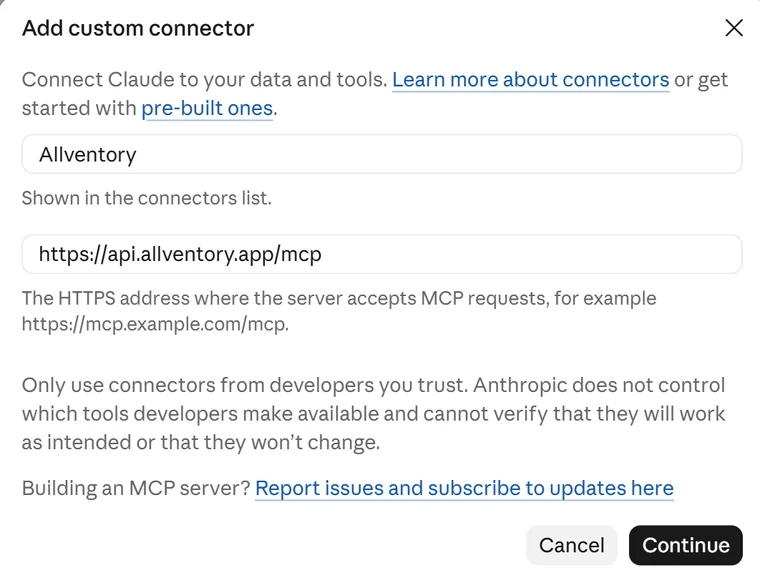
Custom connectors are available on Free, Pro, Max, Team and Enterprise plans; Free includes one. On Team and Enterprise, an owner first adds the connector under Organization settings › Connectors, then each member connects it. Once added, it also works in the Claude mobile apps.
On chatgpt.com in a browser
Open Plugins, select Add, then Add custom MCP server.
Name it Allventory and paste the server address under Connection.
Choose OAuth for authentication, tick I understand and want to continue, and select Create as a plugin.
Sign in to Allventory when asked.
In a new chat, type @ and choose Allventory.
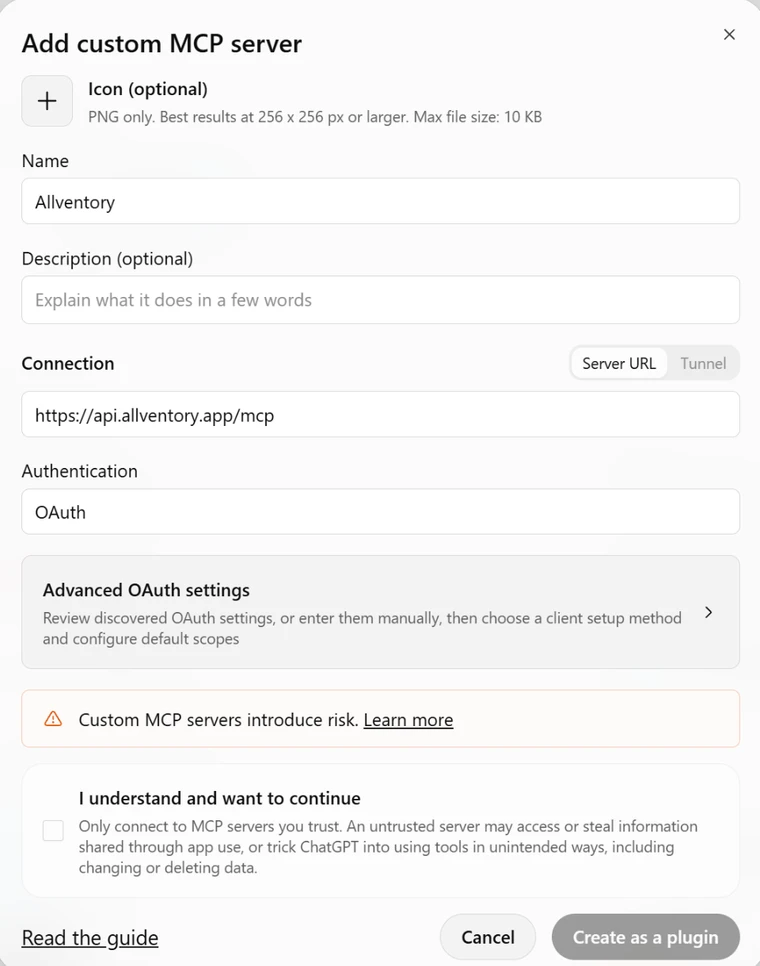
Custom MCP servers can be added on every ChatGPT plan, Free included, on chatgpt.com rather than in the mobile apps. In Business, Enterprise and Edu workspaces, an admin or owner may need to add the server for everyone.
On gemini.google.com on a computer
Open Settings › Personal Intelligence › Connected Apps.
Select + Custom.
Paste the server address under MCP Server URL and select Next.
Follow the prompts to sign in to Allventory.
Ask Gemini about your inventory.
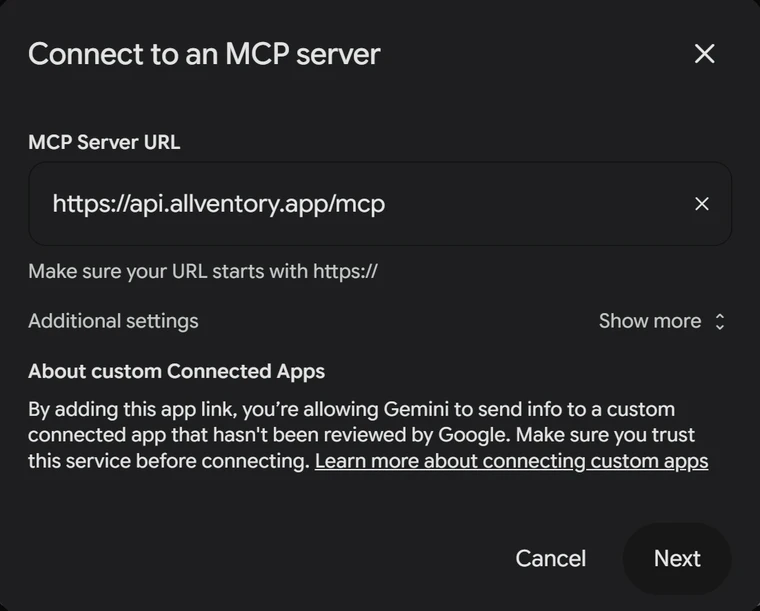
Google currently offers custom apps to people 18 or older in the US, using a personal Google Account in English with Keep Activity on. Add the app on the web; it then works in the Gemini mobile app too.
Allventory opens in your browser. If you are already signed in on the web, you go straight to the approval.
Tick the inventories the app may use, and pick View only or View and edit for each.
Select Allow. You are back in your AI app, ready to ask.
Any app that supports remote MCP servers with sign-in can use the same address. In Claude Code, run this, then /mcp to sign in:
claude mcp add --transport http allventory https://api.allventory.app/mcpSteps checked in October 2026. AI apps rename their settings often: if a label differs, look for “custom connector”, “custom app” or “MCP server”. Claude, ChatGPT and Gemini are trademarks of their respective owners; Allventory is not affiliated with them.
AI app connections work with inventories on Home, Portfolio and Professional. Starter Trial inventories can’t be connected. If a plan lapses, its connections pause and pick up again after renewal, with no reconnecting.
The Model Context Protocol is an open standard that lets AI apps use tools from other services. Allventory runs an MCP server, so AI apps that support it can search and update your inventory when you ask them to.
No. Your AI app does the thinking under its own plan. Allventory AI credits are only used by photo, receipt and serial-number scanning inside Allventory.
No. It sees the names of attached files, not the files or photos themselves, and never property addresses or map locations.
Only with View and edit access, and only items, empty locations, categories and tags. Deleting is marked as an action that needs confirmation, so your AI app asks before it does it. Some apps let you always allow a tool; leave that off if you want to confirm each time.
Yes. Choose several inventories in one approval, each with its own access. Connecting the same app again updates that connection instead of adding another.
Each member connects their own AI app, with no more access than their own role. Owners see every app connected to the inventory and can disconnect any of them.
That depends on your AI app and your settings there. What the app reads is sent to that app and its AI provider, whose terms and your privacy settings decide how it is kept.